
This is a quickstart guide on how to edit pages and content on the new Gateway site using CloudCannon's Content Management System.
Introduction
The new Gateway website uses CloudCannon for all Gateway content. A CloudCannon framework looks like this:
- Gateway site
- Unit content pages hosted in site "branch"
- Other Unit content pages hosted in a different site "branch"
Each Branch is hosted in the CloudCannon Site area. These are not separate sites, but how CloudCannon refers to the subpages of the entire Gateway website.
If you're new to CloudCannon: The CloudCannorn publishing workflow is different from Drupal's. Editing and saving a page does not make those edits published and visible to external site visitors. The new CloudCannon process works like this:
- Content is edited on a page.
- The page is saved and those edits are now staged on the site.
- A Unit submits a Publish request for the saved edits.
NOTE: This will request will include all saved edits for the Unit's content section (branch), not just the edits of the person who submits the Pull Request. - CloudCannon approver receives the Pull Request, reviews any edited content, and then Publishes the Pull Request so that all that Unit's saved edits are now active on the Gateway website.
Remember, saved edits are not live until the Pull Request is is published. Read more about this in the Saving and Publishing Your Changes section.
Getting Started: Logging in and Finding Your Pages
Follow these steps to log in and find the page you want to edit.
- Go to the CloudCannon website and log in using your UO Duck ID login.
After logging in with your UO Duck ID, you'll generally land on the CloudCannon dashboard.
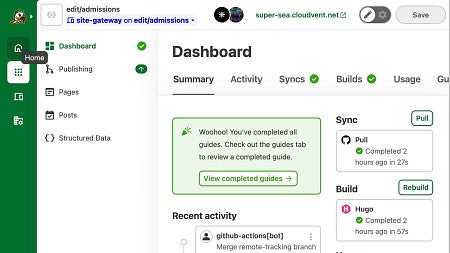
- If the CloudCannon Unit, or website, you want isn't listed, select Sites from the side menu items to find a list of all sites you have access to.
- Select your Unit, or website, from the list of CloudCannon sites.
- Select Pages to browse every page and folder for your Unit, or website.
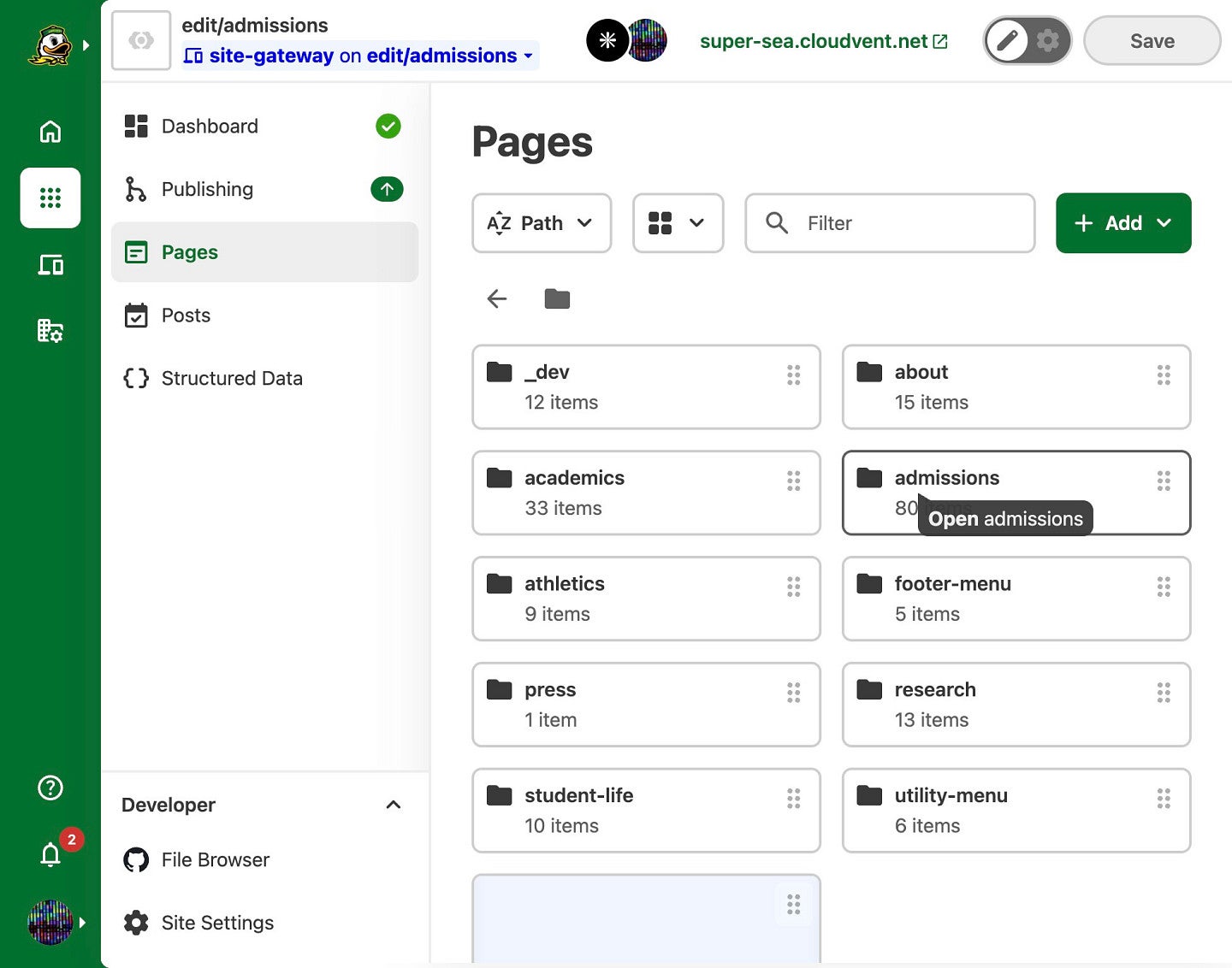
- Click on a folder to open the folder that holds the page you are looking for, such as "admissions" if your page is under an Admissions section.
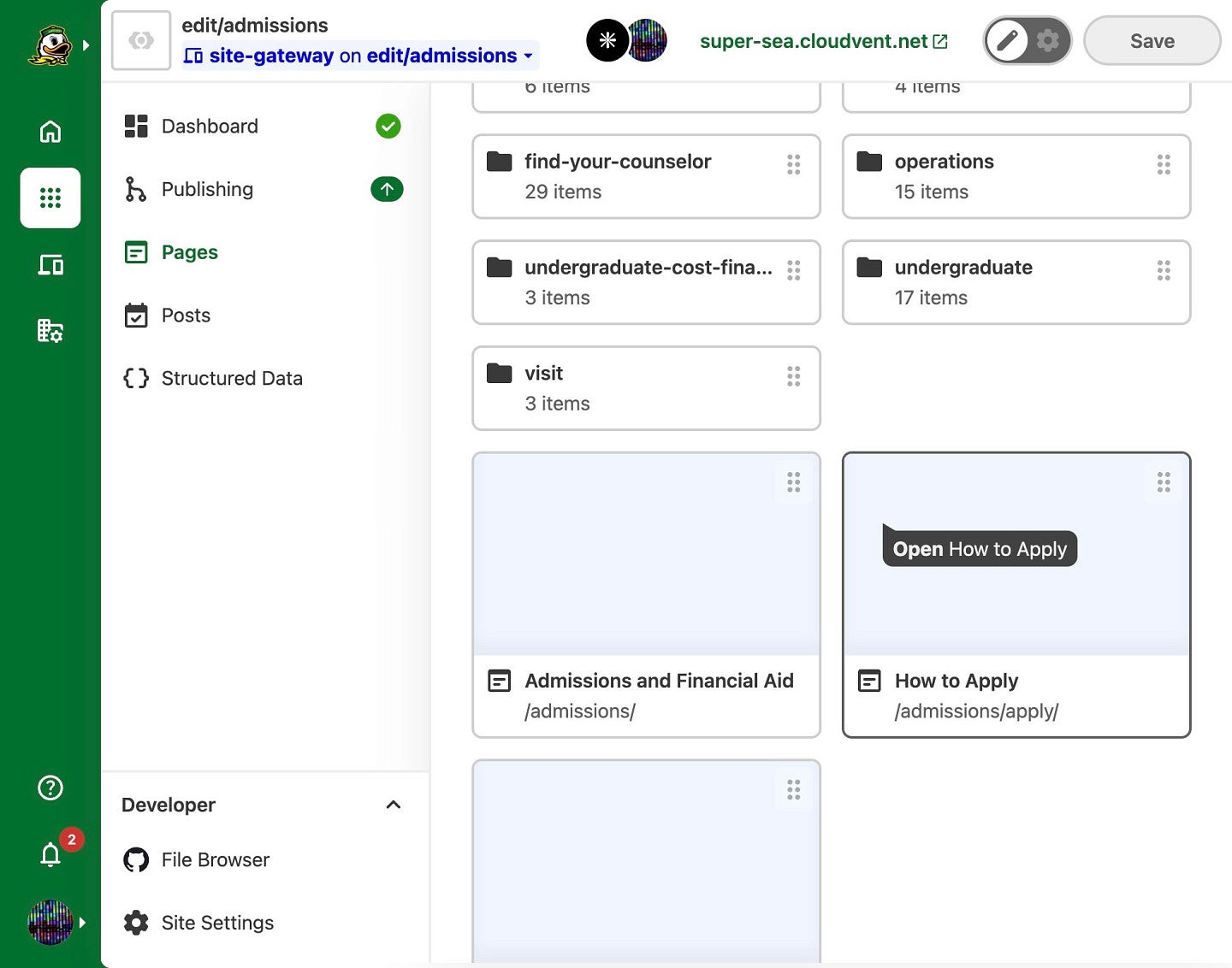
- Click on the page you want to edit. This can be the page's tile, image, or title.
Once you click on a page, CloudCannon opens it in the CloudCannon content editor.
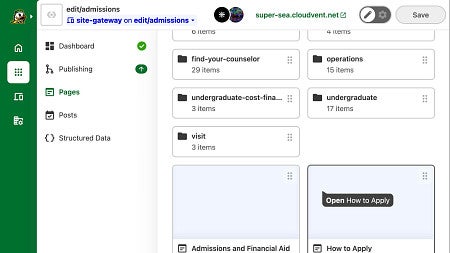
More details can also be found in the CloudCannon help documentation in the Resources Links.
Editing Text Content
CloudCannon gives you two ways to edit a page: the Data Editor and the Visual Editor.
- The Data Editor lists all of a page's content as plain text fields, similar to how you might see in a form.
- The Visual Editor shows those same fields in a digital version of the real page, so you can visualize the content and changes to that page. This editor is the closest to the Drupal Editor.
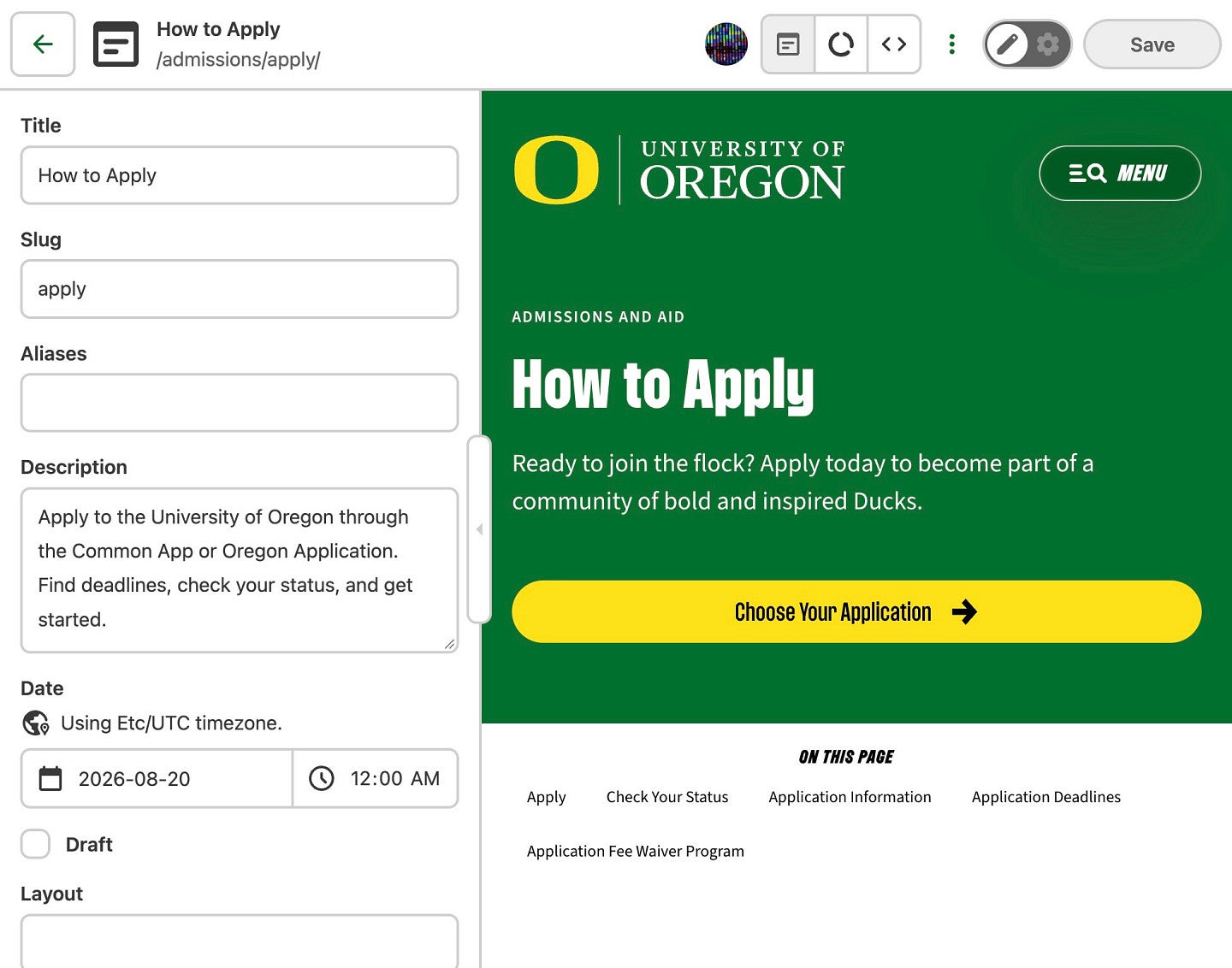
Both CloudCannon editors work the same way once you're inside a field and making edits.
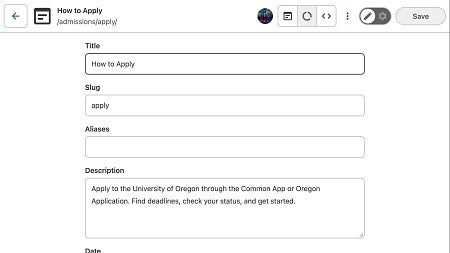
Titles and descriptions
Many items have text you can edit, including Titles, Descriptions, Labels, and Headings.
- Titles and Headings are usually things like your page title, shown at the top of the page and in browser tabs, or it might be the heading used for a Molecule or other Component item.
- Descriptions and Labels are the short summaries search engines show for the page that should be clear and specific as it is often the first thing a visitor reads before they click through. Your content Labels serve similar purposes but are generally your link texts that tell your users where that item goes.
Content sections and Molecules
A page is built from content sections. CloudCannon calls these "blocks," and be named things like "Hero - Minimal" in the editor. Click on a section to open it, and each block is composed of other items Molecules which can have things like headings, images, body text, and call-to-action (CTA) buttons. All of these should follow the same rules we use in Drupal when creating or editing content on those sites.
- Headings should follow a standard order (don't skip from a top-level heading straight to a sub-sub-heading) and are generally short.
- Body text can run longer, but preview it at a few screen sizes to make sure it still reads well, especially on mobile.
- Breadcrumbs are the page-location links at the top of the site (for example, Admissions → How to Apply). Update these URLs or labels the same way you'd edit any other field.
- Use the Back link at the top of the panel to return to the previous section, or select the X in the top right to close that edit section entirely.
URL Paths and Redirects
Every page has a URL path at the top of the editing page, set in the Slug field (combined with its folder location — for example, /admissions/apply/). Changing this field changes the page's live web address.
Changing the path does not automatically redirect the old URL like it does in Drupal. If you rename a page's slug or move it to a different folder, anyone who visits the old address gets a broken link (a 404) unless a redirect is set up separately.
Right now, creating a redirect is a manual step and one of the Digital team members has to set it up as it isn't something you can do yourself in CloudCannon, so it's generally best to include the Digital team if you are renaming a URL and need a new redirect.
Before changing a page's URL path:
- Check whether the page is already linked from elsewhere on the site, in print materials, email campaigns, or external sites.
- If it is, contact the digital team to set up a redirect from the old URL to the new one, before you make the change.
Adding and Editing Images
Images live inside the same content sections and Molecules described above, for example, an image in a page's "Hero" section. Select the image field to open it, then:
- Drag an image file from your computer onto the drop area, or
- Select the + Add file to either upload a new image from your computer or choose an existing one from the file browser, or
- Paste an image URL directly into the field.
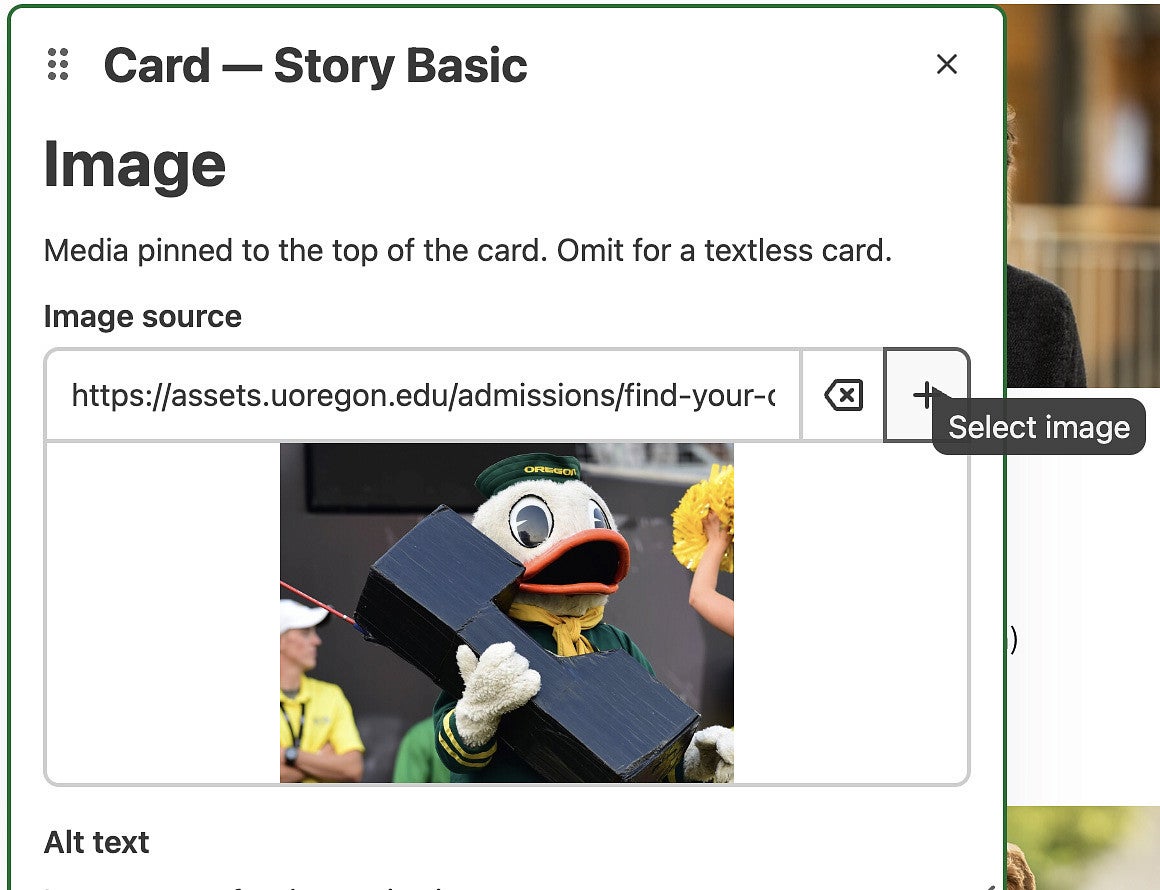
Choose a relevant photo and try to avoid generic stock art, although images from the UO Canto brand folder are generally ok to use. Ensure every image has clear, descriptive alt text (one sentence, ideally under 16 words) so screen readers can describe it and search engines know what the image contains.
More details: CloudCannon's File input article, and UO's Images guidance for choosing and naming images.
Saving and Publishing Your Changes
Every edit panel has a Save button in the top right. Select it to save your changes and keep CloudCannon edits and your CloudCannon Git repository in sync, but it doesn't put your changes on the live site by itself.
If your site uses a Publishing Workflow, you're editing a branched copy, and you'll publish those edits to a Publish Branch when you're ready to go live. Not every site has this set up — check with your CloudCannon site administrator if you're not sure.
More detail: CloudCannon's Introduction to Syncing & Publishing and Save your changes articles.
Working Example: Updating the How to Apply Page
This walkthrough updates the How to Apply admissions page, start to finish.
Find the page
- Log in to CloudCannon. You'll land on your dashboard.
- If you don't see your site listed, select Sites.
- Select your site from the list.
- Select Pages to browse the site's pages and folders.
- Open the "admissions" folder.
- Select How to Apply to open it in the editor.
Choose your editor
Pick Visual Editor or Data Editor. Both edit the same content — the Data Editor shows every field as text fields, and the Visual Editor shows those fields within the page visual layout.
Edit the basics
- Select Title to change the page's name.
- Select Description to update the summary text visitors see in search results.
Edit content sections
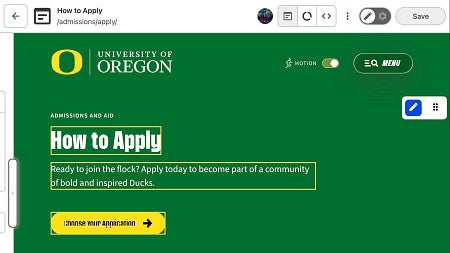
- Select a content section, for example, the Hero — Minimal Molecule item, to update its text and image.
- Update a breadcrumb's URL or label the same way: breadcrumbs are the page-location links at the top of the site (Admissions → How to Apply).
- Select Back at the top of an edit item to return to the previous section, or X to close the editor window entirely.
- Inside a section, select a Molecule item (such as Heading, Accent Color, Image, Body content, or CTA) to edit just that piece.
- Keep headings in standard order and short; body text can run longer, but check it at a few screen sizes before saving.
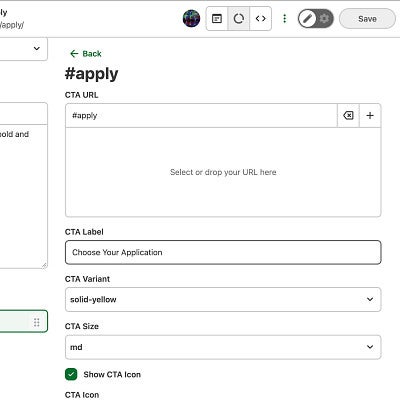
- Keep call-to-action (CTA) button text short and specific about what it does and never use something like "click here" as it does not provide users any information about what the link does. You can also adjust a CTA's label, color, size, or icon as needed.
- You can also fiind more page options in the side menu (toggle it with the vertical button on the left).
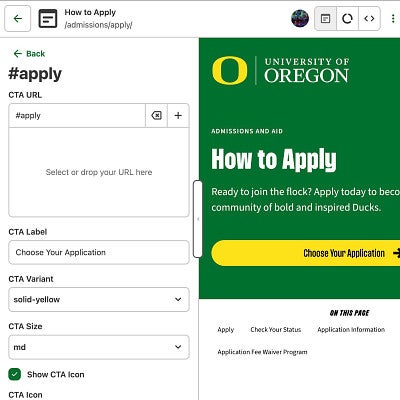
More detail: CloudCannon's URL input article (for CTA links) and UO's Dos and Don'ts page (for link and button wording).
Edit directly on the page
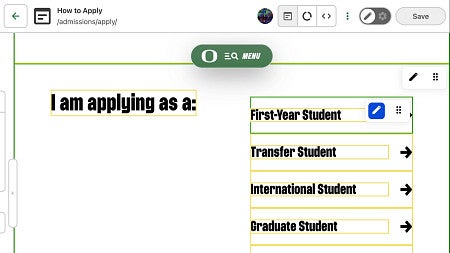
- In Visual Editor mode, select the pencil icon in the top right of any content item to edit it directly.
- Some items are nested, so you may see more than one pencil icon close together — select the outer one to edit the whole item, or an inner one to edit just that Molecule.
- Add or edit links inside body text using the Link button in the text toolbar.
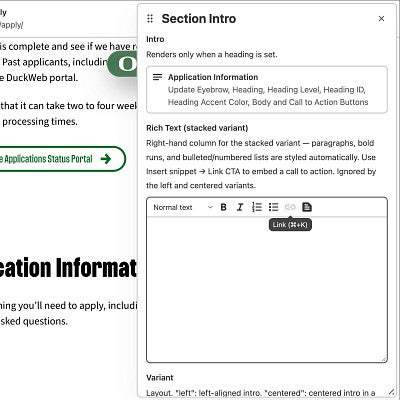
More details: CloudCannon's Rich Text input article covers the Link button.
Tips and Troubleshooting
- Never use "click here" for links or buttons. Use text that describes exactly where it goes, like "Choose Your Application."
- Keep headings in order. Don't skip from a top-level heading straight to a sub-sub-heading.
- Test on multiple screen sizes. Text that looks fine on a desktop can crowd a phone screen.
- Seeing multiple pencil icons close together? Content Molecules are often nested — the outer icon edits the whole item, an inner one edits just that piece.
- Didn't mean to change something? Use the Back link to return to the previous section without saving, or close the editor with the X in the top right.
If you get stuck, contact your site's CloudCannon administrator or University Communications.
Further reading: UO's Dos and Don'ts and Best Practices Quick Reference, and CloudCannon's Introduction to Editing.
Additonal Reources
- UO Writing for the Web
- UO Dos and Don'ts
- UO Best Practices Quick Reference
- CloudCannon: Introduction to the CloudCannon UI
- CloudCannon: What is the Visual Editor?
- CloudCannon: What is the Data Editor?
- CloudCannon: Save your changes
- CloudCannon: Introduction to Syncing & Publishing
- CloudCannon: What is a File input?